

Can’t See My Banner / Banner Display Issues
If you’re experiencing issues displaying your banners in your email messages, please follow this guide:
1. Banners are a Premium Plan Feature
Among other features, the Premium plan enables you to assign and deploy banners for any and al of your templates.
If your account is under the Free plan, you may assign banners in the template preview screen, but the deploy process will skip over them.
For the banners to be displayed in your email messages, make sure to join the Premium plan and re-deploy the signatures.
2. Timing the Banner
Signite lets you time the banners to be displayed at specific dates and times. If the start date has yet to come, or the end date has already passed, the banner will automatically be removed from the email message, without a need to re-deploy the signature.
You can also set up a default banner to display instead of the timed one once their end date passes.
If your timed banner is missing, make sure to set the correct dates for the banner to be shown.
See more in step 1.6. in the following guide:
https://www.signite.io/support/guides/how-do-i-upload-and-manage-banners-using-signite/
3. Recipient Can’t See the Banner
If you can see the banner but your recipient can’t, see the following options:
3.1. Gmail settings
Gmail settings may block external images by default for some users.
To change that, your recipient must go to their Gmail settings, and under the General tab – scroll to the Images section.
There, make sure that the following option (Always display external images) is selected:
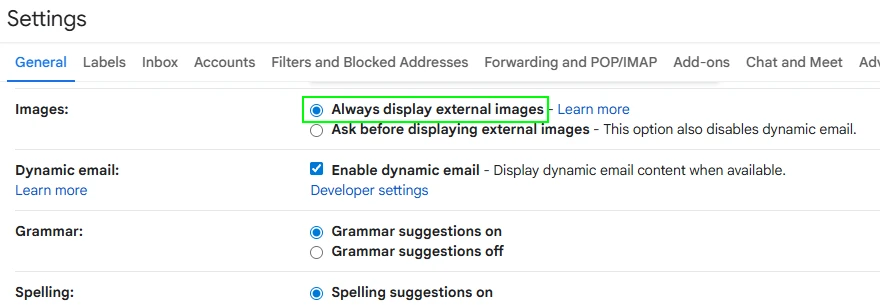
Once saved, the banners will no longer be blocked by your recipient’s Gmail.
3.2. Adblock
Some ad blocking plugins installed on your recipient’s browser may falsely flag Signite or your email content, leading to images and links being blocked.
Each plugin works differently, but most will allow you to whitelist specific domains to mitigate the issue.
Ask your recipient to whitelist the following domains to make sure the images aren’t being blocked:
signite.io
app.signite.io
4. Firewalls
Strict server firewalls may block images and links not sent from the same domain.
To mitigate that, you can use the External banner option in the banner creation screen.
For more information, follow step 2 in the following guide:
https://www.signite.io/support/guides/how-do-i-upload-and-manage-banners-using-signite/#external
If you have any questions, please contact us at support@signite.io