

Secondary Domains Synchronization
After verifying the account in the initial setup, if your primary domain doesn’t contain any users, your users list will be empty.
If you have a secondary domain with relevant users for signature deployment, please sync it by following these steps:
1. Go to the Domains screen
The Domains screen will show the list of domains in your Google Workspace account, with an indication of 0 users for all domains.
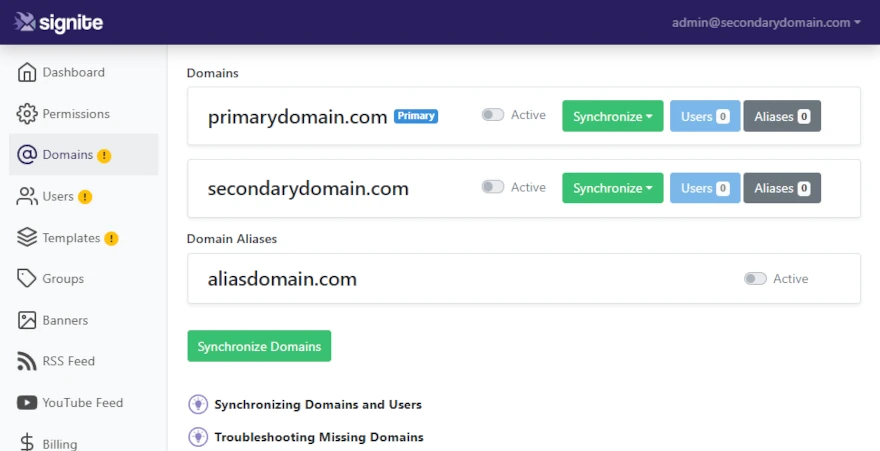
2. Sync the secondary domain
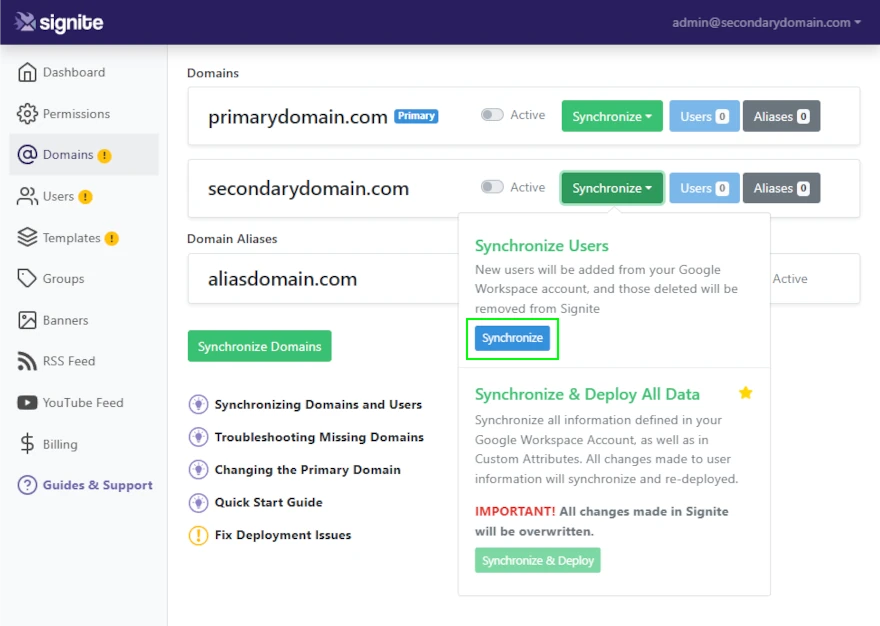
Go to the secondary domain you wish to activate, and choose Synchronize -> Synchronize Users (the first option in the drop down menu)
The secondary domain will update the users count for the domain, and will show as active.
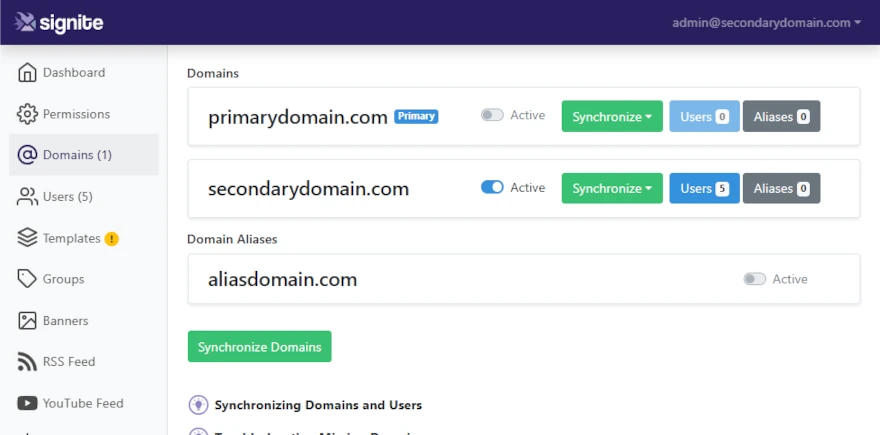
Do the same for each additional domain whos users you wish to deploy to.
Note: The steps mentioned in this guide require your user to either be a Super Admin on Google Workspace or have Full Admin permissions as per the following guide:
https://www.signite.io/support/guides/how-to-create-full-google-workspace-signature-admin-role/
Basic Admin permissions are too low for the required changes to take effect on Signite.
If you encounter any issues syncing your domain, Signite may have insufficient permissions to access your domain, or it’s already in use on another account. Please try the following guide: Domain Sync Troubleshooting
If you have any questions, please contact us at support@signite.io