

How do I create and apply a full Google Workspace signature management Admin role?
Before creating a new role, the Super Admin needs to install and synchronize Signite on Google Marketplace.
How to install the Signite app
Creating an admin role
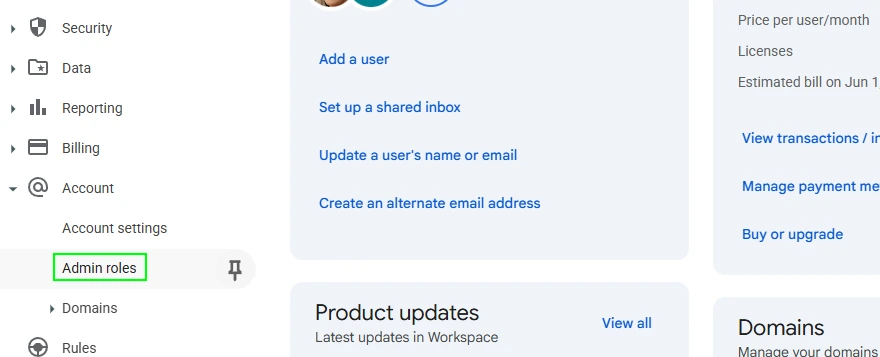
1. In your Admin Console, click on Admin roles
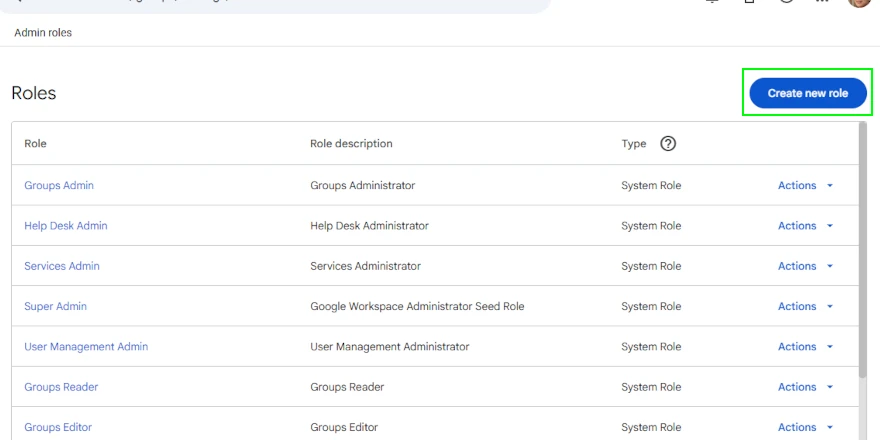
2. Create a new role
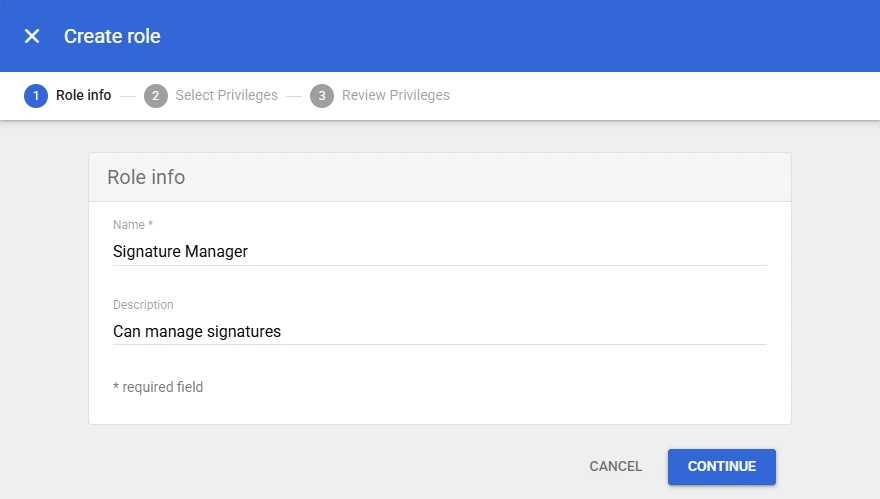
3. Fill in the appropriate role name and description, and press continue.
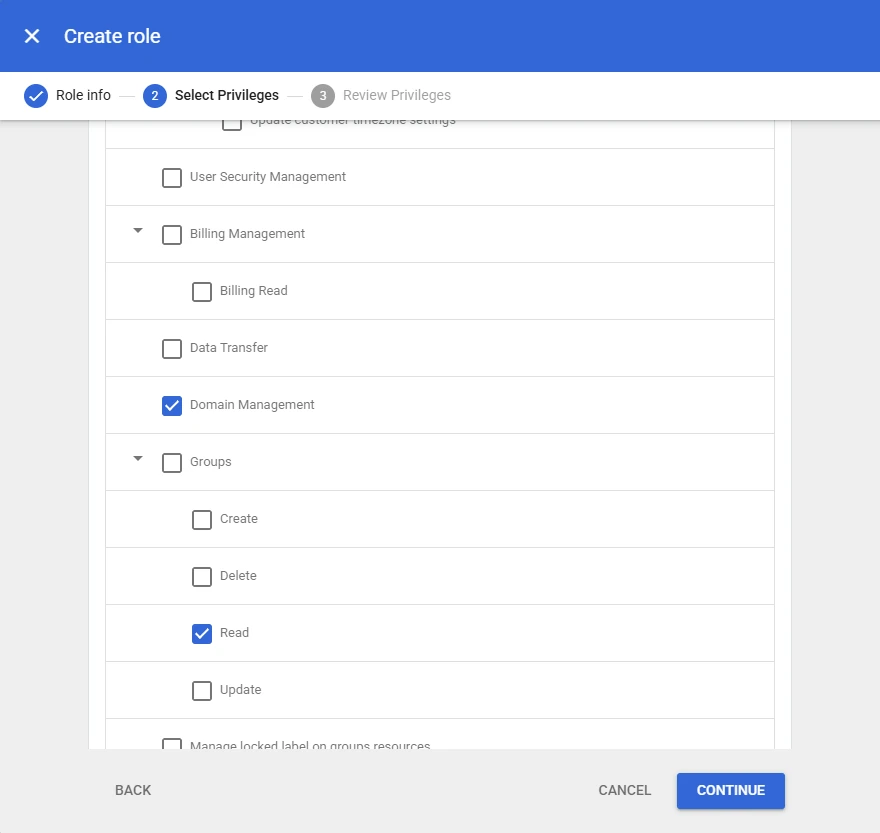
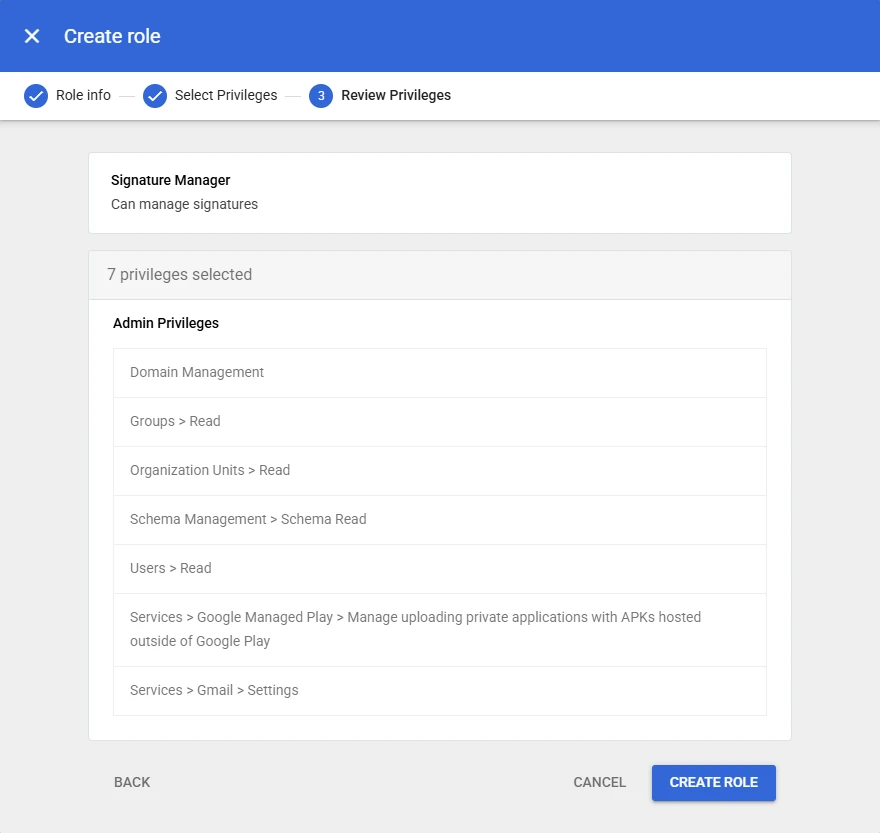
4. Under Privileges, select the following 7 privileges:
4.1. + 4.2. Admin Privileges > Domain Management
Admin Privileges > Groups > Read
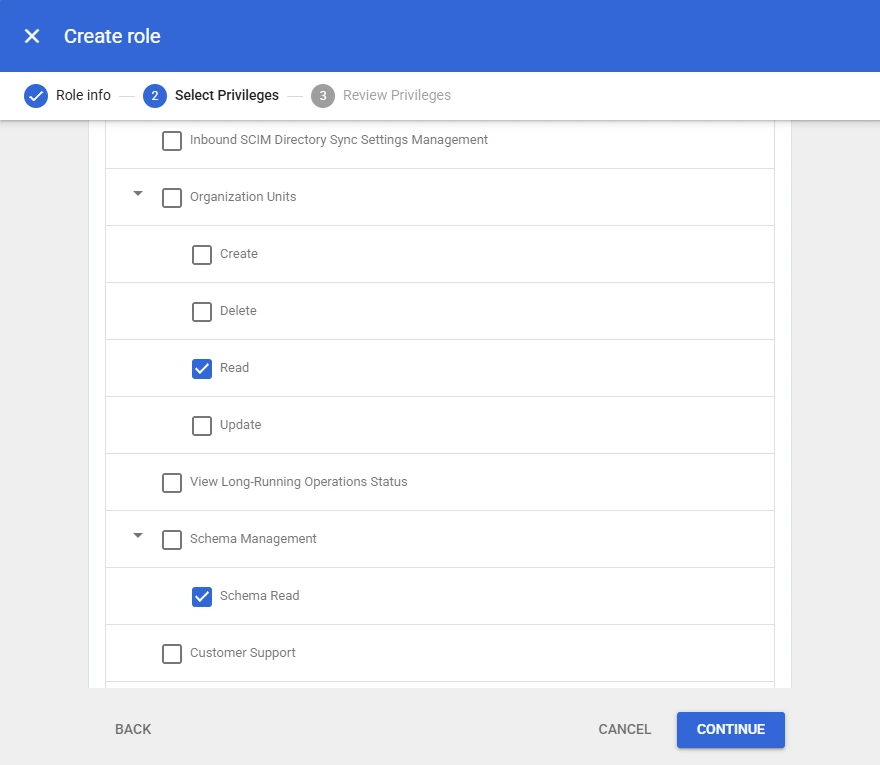
4.3. + 4.4. Admin Privileges > Organization Units > Read
Admin Privileges > Schema Management > Schema Read
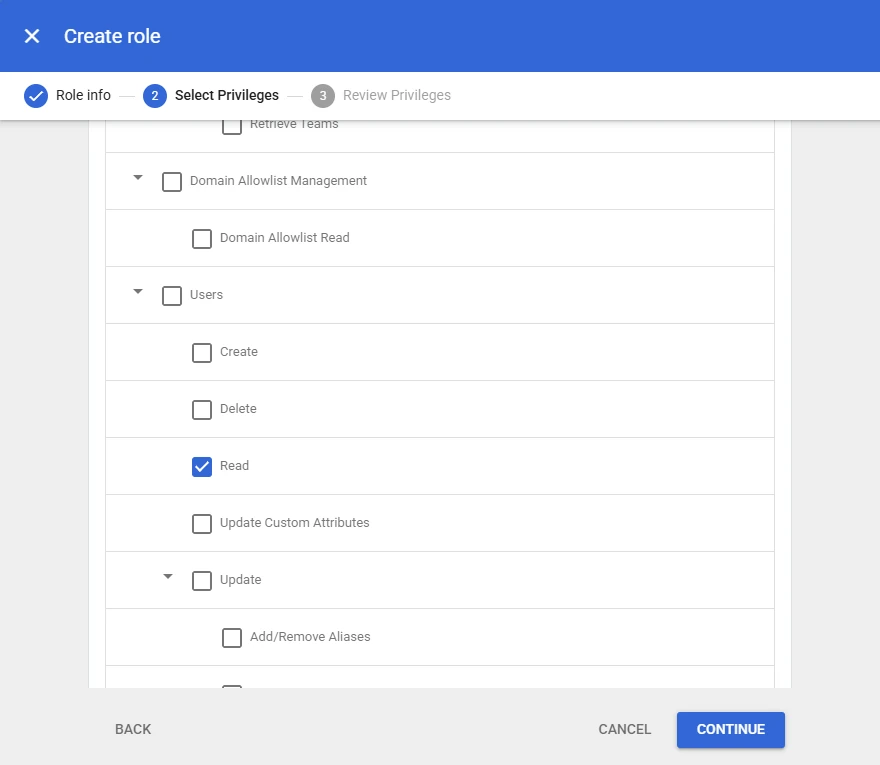
4.5 Admin Privileges > Users > Read
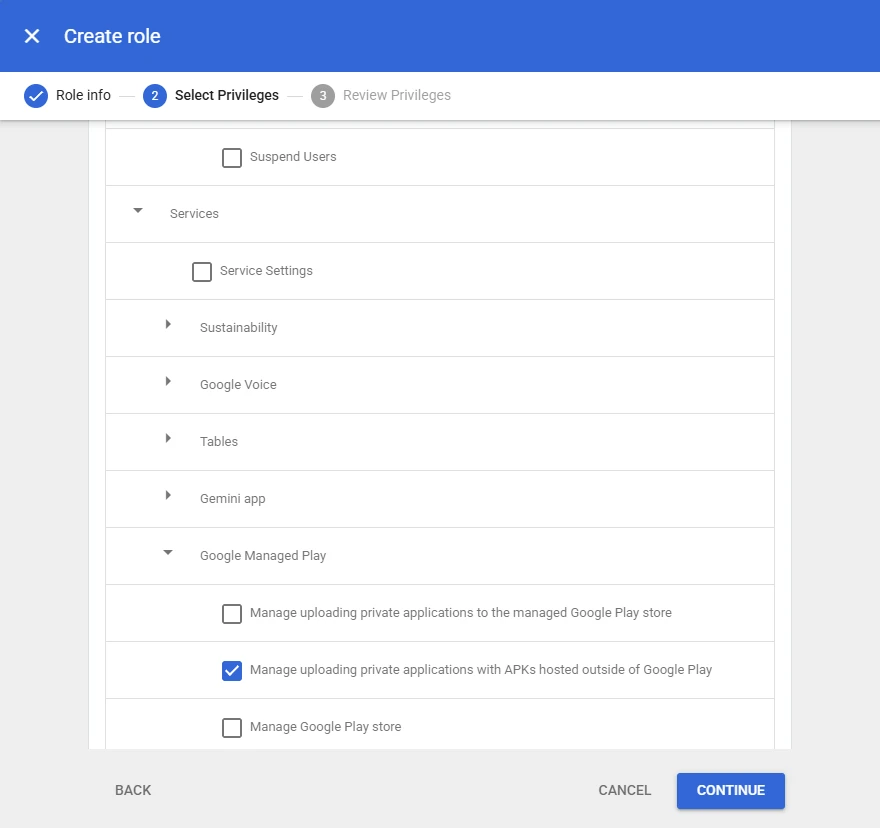
4.6 Under Admin Privileges > Services > Google Managed Play > Manage uploading private applications with APKs hosted outside of Google Play
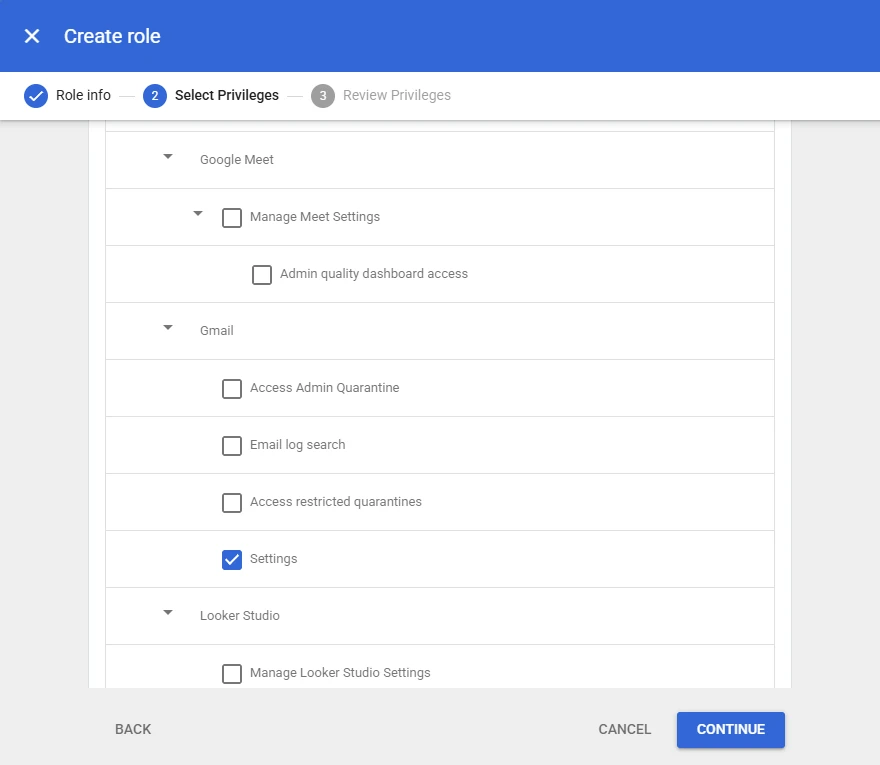
4.7 Admin Privileges > Services > Gmail > Settings
5. After pressing Continue, review the new role, and press Create Role
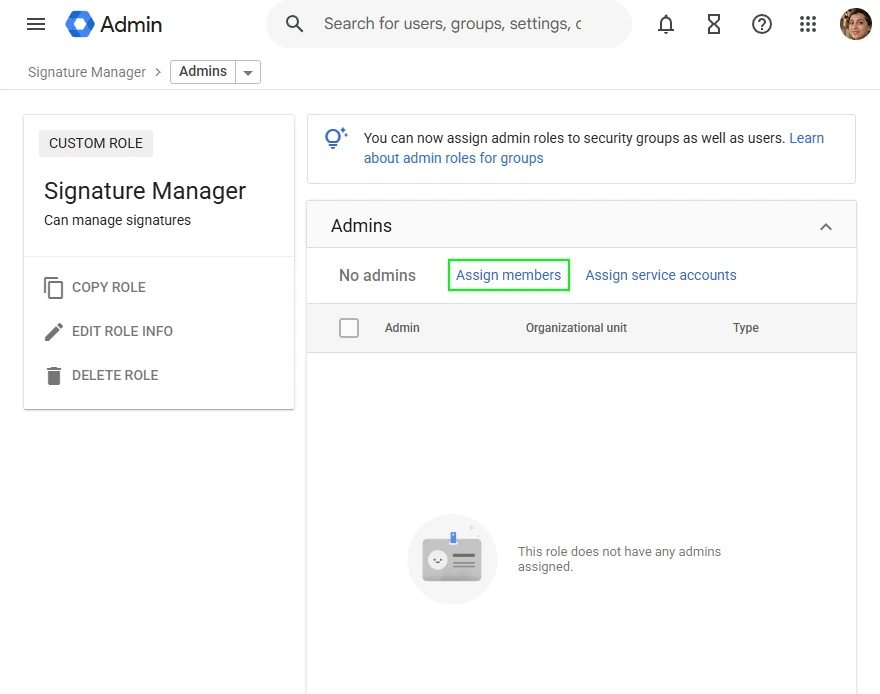
6. In the new role’s settings window, press Assign role.
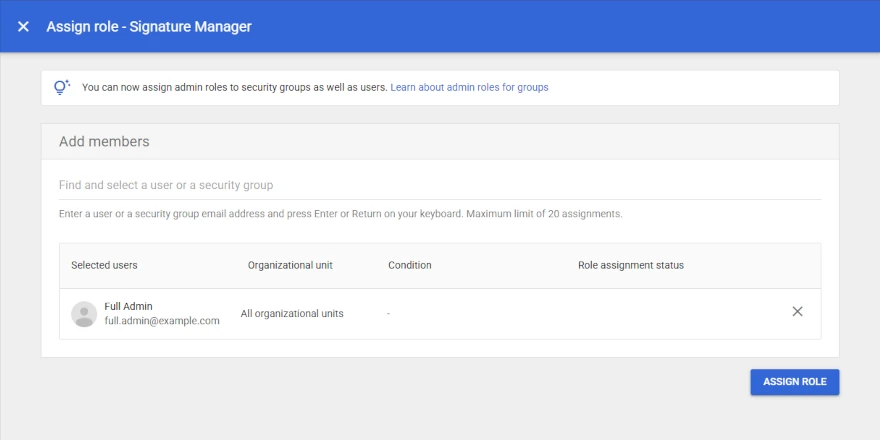
7. Find and select the appropriate user for the role, and press Assign role
8. Deploy
Once the role is assigned, the user can edit, manage and deploy Signite’s signatures to all other users on the Google Workspace account.
—
Admin role with basic permissions
If you need to give minimal access and editing capabilities to a user on Google Workspace (in addition to managing signatures on Signite), please follow this guide: How do I give another user basic permissions to edit and deploy signatures?
Note that you’ll need to login in as a Super Admin in order to edit and manage this role.