

Mobile Gmail App Support
Signite supports Gmail mobile applications on both iPhone (iOS) and Android.
Since Gmail now supports centrally managed signatures deployed through Google Workspace, signatures created with Signite can be displayed in the Gmail mobile apps without requiring any additional Signite mobile application.
This guide explains how email signatures work in Gmail mobile apps and how to enable signature display on iOS and Android devices.
1. Gmail Mobile Signatures on Android
- Gmail for Android supports centrally managed signatures.
- Signatures deployed through Signite are synchronized through Google Workspace.
- No additional Signite mobile application is required.
- Users should ensure Gmail mobile signature display is disabled.
- Alias-related behavior may vary between Gmail versions and platforms.
1.1. How to Enable Signatures in Gmail for Android
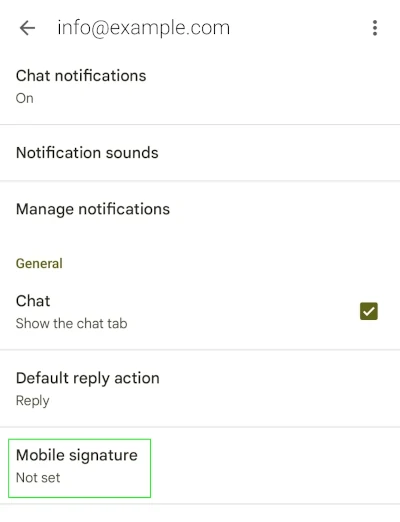
Scroll down to the Gmail app settings, choose your email address and make sure the Mobile signature field is Not set.
Go to Signite and re-deploy your signature (update template / apply signature to user).
Close the Gmail app and re-open it for the changes take effect (equivalent to refreshing Gmail on desktop).
Compose a new message and make sure the new signature is displayed.
2. Gmail Mobile Signatures on iPhone (iOS)
- Gmail for iPhone supports centrally managed signatures.
- Signatures deployed through Signite are synchronized through Google Workspace.
- No additional Signite mobile application is required.
- Users should ensure Gmail mobile signature display is disabled.
- Alias-related behavior may vary between Gmail versions and platforms.
2.1. How to Enable Signatures in Gmail for iPhone
In your Gmail mobile app, go to your account settings and click on the relevant email address.
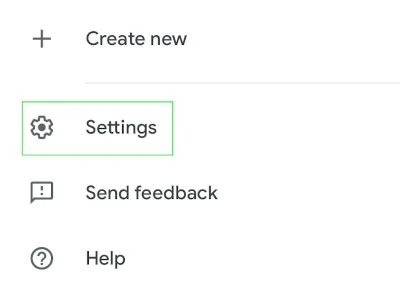
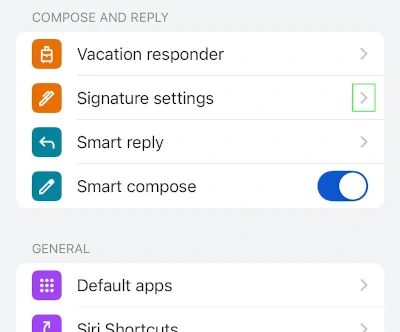
Scroll to the Signature Settings and click it.
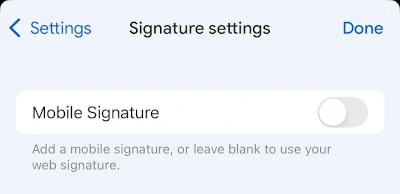
Make sure the Mobile Signature checkbox is unchecked.
Go to Signite and re-deploy your signature (update template / apply signature to user).
Close the Gmail app and re-open it for the changes take effect (equivalent to refreshing Gmail on desktop).
Compose a new message and make sure the new signature is displayed.
Frequently Asked Questions
June 10th, 2026: Important Note Regarding Gmail Aliases on iPhone (iOS)
Some users may experience situations where signatures are not displayed when sending from Gmail aliases in the Gmail app for iPhone. This appears to be a Gmail mobile app limitation and is not related to Signite signature deployment.
We continue to monitor the issue and will update this guide if new information becomes available.
If you have any questions, please contact us at support@signite.io