

User Types and Changing Their Statuses
Your user list is populated with your Google Workspace account’s users, and their status is indicated under the Status (G. Workspace) and Status (Signite) columns on each row.
1. Google Workspace Statuses
You can change and update your users’ status from the Users page in the Google Workspace interface.
The user statuses on GW are as follows:
1.1. Active
This user is active and has access to Gmail.
A signature can be assigned to their user on Signite and deployed to their Gmail signature settings.
1.2. Suspended
This user is suspended and can not be deployed to. If you un-suspend them on Google Workspace, you’ll be able to assign and deploy a signature from Signite, provided that you first synchronize the change via the user synchronization option.
*Note: Changing a deployed user’s status from active to suspended requires that you reset the user on Signite.
1.3. Without Gmail
This user has no access to the Gmail framework, and therefore Signite cannot deploy signatures to them. To change that, turn on the Gmail app access for this user’s Organizational Unit on Google Workspace, or assign it a different Organizational Units which already has that access turned on.
*Note: Removing a deployed user’s access to Gmail requires that you reset the user on Signite.
2. Synchronize GW user statuses with Signite
Note: Each change to a user’s status in Google Workspace (Active -> Suspended / Without Gmail and vice versa) requires that you synchronize your users from Google Workspace to Signite. It’s important to give a few minutes for Google to process the change before trying to sync it into Signite.
Please follow Point #2 in this guide for more information:
https://www.signite.io/support/guides/synchronizing-domains-and-users/
If the automated synchronization module is activated, the sync will occur at the chosen interval without any necessary action on your part.
3. Signite User Status
The user statuses on Signite are as follows:
3.1. Not Deployed
The default user status when initially synced to Signite from Google Workspace. This user is not counted towards your plan package’s total user count.
3.2. Deployed
This user has a signature assigned and deployed to their Gmail signature settings.
This user is counted towards your plan package’s total user count.
If the user is deployed but you still can’t see the signature, refresh your Gmail browser screen and compose a new message.
Follow this guide if the signature doesn’t display:
https://www.signite.io/support/guides/fixing-signature-display-issues/
3.3. Pending
This user is in the process of being deployed to. Their signature will be assigned and visible promptly.
This status is a temporary one and will be replaced by either the Deployed or the Error statuses once the process is finished.
3.4. Error
This user encountered an error on Google while trying to deploy the signature to their Gmail signature settings.
Click the icon for more information regarding the exact error and how to fix it.
See more regarding troubleshooting deployment errors in this guide:
https://www.signite.io/support/guides/deployment-errors/
4. User Status Changes
Suspending a deployed user or removing their Gmail access on Google Workspace requires that you reset them on Signite so that the correct deployed user count is calculated for your Signite account.
See the following guide for how to reset deployed users:
https://www.signite.io/support/guides/remove-reset-signature/
Following the reset and change to the user’s status, synchronize your users from the Domains screen.
This process will update your account’s user count, which will enable you to deploy to your other (Active) users.
At any point you’ll be able to un-suspend your user or add Gmail access via Google Workspace, which will then allow you to assign them will a template and deploy like any other user, provided that you sync the change via the Domains screen.
More regarding user synchronization in Point #2 of the following guide:
https://www.signite.io/support/guides/synchronizing-domains-and-users/
5. Filters
You can filter for both types of user statuses from the top Filter menu in the Users screen
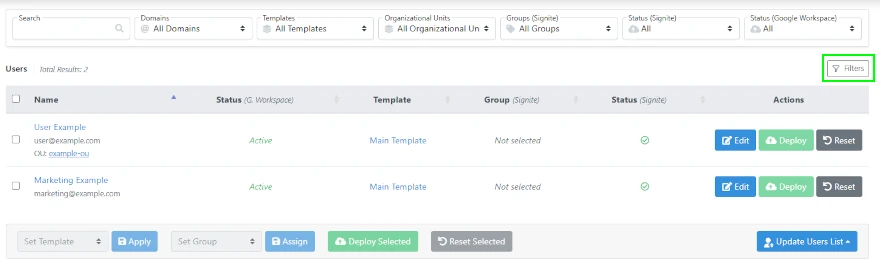
This will display only the relevant users for your query.
*Note that if you’ve set suspended users or users without Gmail to be hidden by default from the Account screen – you will not be able to see users with these statuses in the users list.
If you have any questions, please contact us at support@signite.io